 VPN
VPN
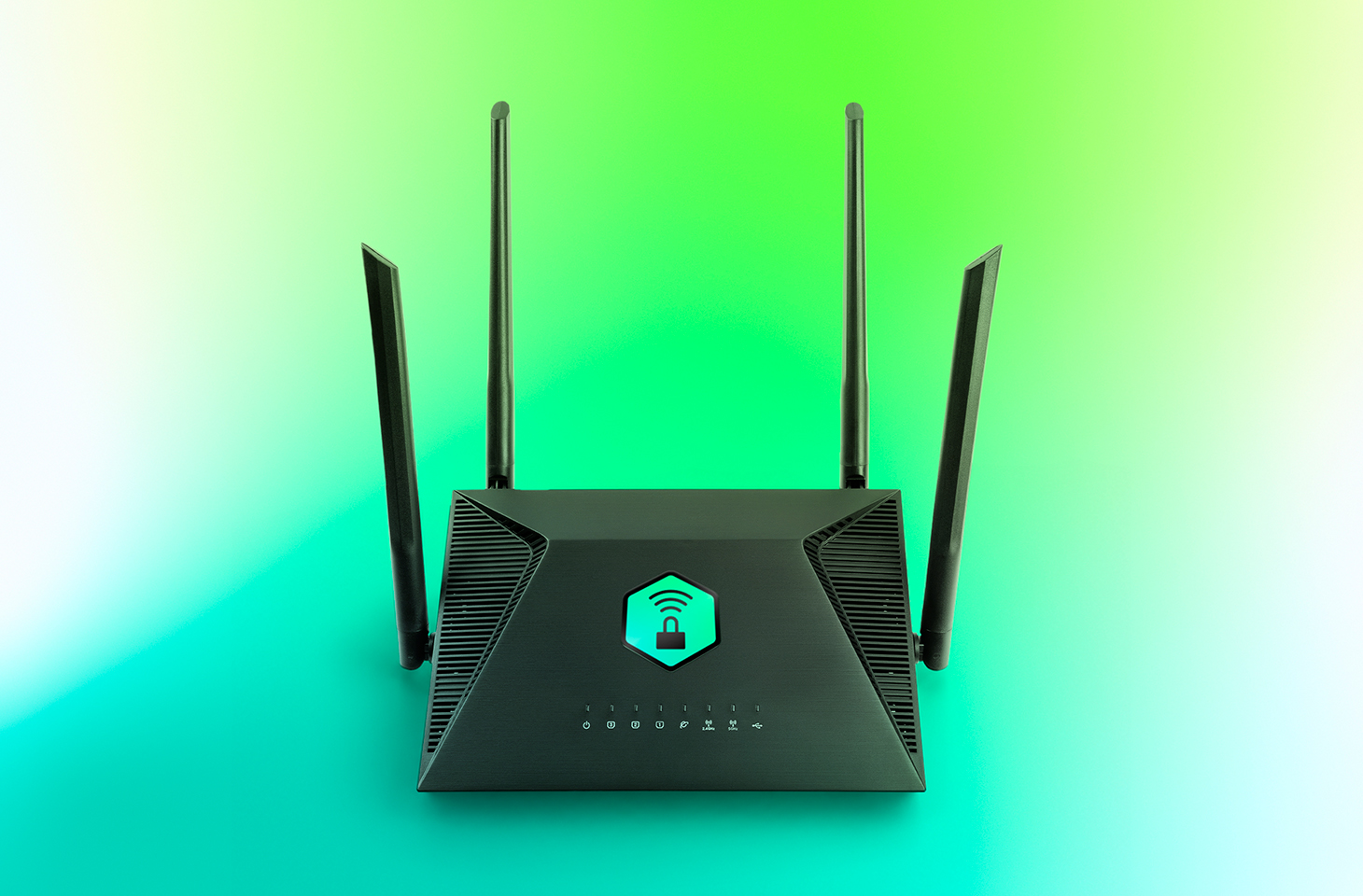
VPN use is growing around the world, with the worldwide average holding steady at 20% growth per year. Users have come to appreciate everything a VPN offers: it encrypts your connection, shields you from relentless ISP tracking (and the targeted ads that often come with it), hides your IP address and location, and lets you keep using your favorite paid services while traveling. This matters most at big public events, like international football tournaments, the Olympics, or concerts by popular performers, where the odds of scammers intercepting an unprotected Wi-Fi connection go up sharply.
That said, VPNs come with their own frustrations. One of the biggest is that many smart devices – including TVs, game consoles, streaming boxes, and smart-home gadgets – can’t run a VPN at all. On top of that, you usually have to set up the VPN separately on every single device in your home. Installing the VPN directly on your home router solves both problems at once: it protects your entire home network, including newly added devices. Here’s a closer look at what benefits that setup gives you.
1. Every device gets VPN protection
Turn on a VPN on your router, and every device connected to your home Wi-Fi automatically sends its traffic through that protected, encrypted connection. There’s nothing extra to do: connect your phone, laptop, or TV to the Wi-Fi, and its traffic is already routed through the VPN.
Many paid VPN services cap the number of devices you can use under a single subscription. But your router only counts as one device on that list, even though it might be protecting a dozen or more gadgets in your home at once.
It’s worth noting that installing a VPN on a router is usually only possible with paid VPN services. Free plans typically don’t offer this option, or only allow it in a very limited way.
2. Set it up and forget it
Setting up a VPN on every phone and computer in the house can get tedious fast. And if your home devices run on a mix of operating systems, you’ve to start by locating the VPN settings on each one, since Android, Windows, iOS, and macOS all handle this differently.
With a router setup, you configure the VPN once, and it automatically covers any new device you connect later too.
3. Protection even for devices that don’t support VPN
Plenty of devices can’t run a VPN at all. That includes smart TVs, streaming boxes, game consoles, and nearly every piece of smart-home tech out there, from baby monitors to robot vacuums. A VPN on your router protects all of them, and you don’t have to tinker with your vacuum cleaner or smart bulb’s settings separately.
4. No need to worry about turning the VPN on and off
Many people want to make sure that not a single byte of their data leaves their device before the VPN kicks in. The problem is that there’s always a short gap between turning on a computer or phone and the VPN firing up, and during that window, data travels over the internet unencrypted.
The usual fixes are to turn on special features – such as Always On VPN or a VPN kill switch – in the operating system or VPN app. A more effective option though is running the VPN on the router itself. That way, “not a byte without the VPN” becomes true automatically for every device on your home network. But for complete peace of mind, you’ll still want to set up a kill switch on the router too, so that if the VPN ever disconnects (say, the VPN server becomes temporarily unavailable), your devices lose their internet connection entirely rather than falling back to an unprotected one.
5. Working remotely with two VPNs at once
Another common headache is needing to run two VPN services at the same time. This usually comes up with remote work: you need a corporate VPN to connect to your company’s network, while also wanting a personal VPN for everything else. On many devices, running two VPN connections at once for different purposes is either a real hassle to configure or not possible at all. Constantly switching between the two isn’t convenient either, and it opens up privacy and security gaps.
A VPN on your router solves this too. You simply turn on the corporate VPN on your work computer, and it runs on top of your Wi-Fi connection, which is already protected by your personal VPN on the router. In effect, you end up with one VPN nested inside the other (corporate VPN → Wi-Fi → VPN → internet), but this layered setup rarely causes any issues.
6. Getting around apps that block VPNs
Some banking and streaming apps can detect when a VPN app is running on your device and simply refuse to work. Usually, they can’t tell what kind of VPN it is or why you’re using it. They just object to any VPN connection being active at all. If the VPN runs on your router instead of on the device itself, this problem disappears.
7. Protecting guests on your home network
Any device belonging to friends or family that connects to your Wi-Fi automatically gets VPN protection too, with no setup required on their end.
8. Less strain on your devices
Since the router handles the encryption workload, your phones, tablets, and other lightweight devices can use less computing power and drain less battery than they would if running a VPN themselves.
9. Simplified VPN management
Need to switch VPN servers, change protocols, or tweak other settings? Just do it once, on the router. There’s no need to reconfigure every device separately.
Precautions and things to keep in mind
For all its advantages, running a VPN on your router does come with a few trade-offs worth knowing about.
- Encrypting traffic for an entire network takes real processing power, so on an underpowered router, your connection speed may end up limited.
- Some routers don’t support VPNs at all, or only work with older, less secure protocols like PPTP.
- If your router was issued by your ISP, you may not have enough permissions to install a VPN on it.
In any of these cases, you can buy a more capable router that supports VPNs, and use it either instead of, or alongside the ISP-issued box, setting up your home network and VPN on your own hardware.
With this setup, your devices connect as follows: device → Wi-Fi or Ethernet → personal VPN on router → internet. For computers that also connect to a corporate VPN, the path looks slightly different: corporate VPN on computer → Wi-Fi or Ethernet → personal VPN on router → internet.
If you can’t connect your own router directly to your ISP’s network because your model lacks the right port (for example, with a fiber connection), you can use an Ethernet cable to plug your personal router’s input into your provider’s box. In that case, you can either switch the ISP-issued router into bridge mode or simply turn off its Wi-Fi so it doesn’t add unnecessary wireless clutter, since its only job now is connecting to the provider’s network and passing that connection along to your own router.
It’s also worth noting that some online services – like banks, government sites, online stores, and streaming platforms – may restrict or block access entirely when they detect a foreign IP address through a VPN. To get around this, you can either turn off Wi-Fi on your phone and use your mobile data instead, or take a more sophisticated approach to your router setup, as described below.
Most modern routers let you create more than one Wi-Fi network, usually supporting at least a separate home and guest network, each with their own settings. You can use this to create two networks: one with the VPN always on, and one without. Then, for services that don’t play well with VPNs, you can simply switch to the unsecured Wi-Fi network instead.
If you’re willing to spend some more time on setup, there’s an even more convenient option, known as split tunneling: individually configuring certain services or websites to bypass the VPN while sending everything else through your secure VPN connection as usual. To do this, you’ll need to specify the addresses of the sites that should skip the VPN.
Many feature-rich routers also let you divide your home devices into groups and set different connection rules for each group. That way, you could set things up so your smart TV reaches streaming services without a VPN, while your smart home devices, computers, and phones only ever connect to the internet through the protected channel.
How to set up a VPN on your router
Setting up a VPN on your router might sound more complicated than installing it on individual devices, but it delivers far more comfort and protection for your whole home network.
To do this, you’ll need a router that supports VPNs, and a subscription to a VPN service that can generate configuration files for routers using modern VPN protocols. Kaspersky VPN supports the two most widely used VPN protocols – OpenVPN and WireGuard – for connecting routers to the service.
You can create a Kaspersky VPN configuration file for your router by following our detailed guide. For instructions specific to your router model, we recommend searching online or asking an AI assistant something like “how to set up a VPN on {your router model}“.

 Tips
Tips